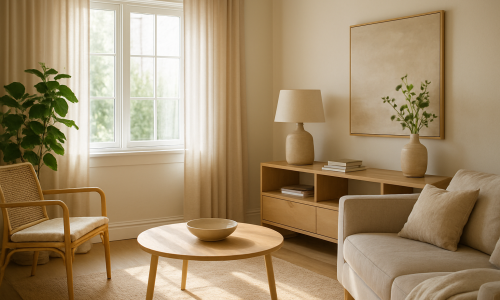
In the world of photography and graphic design, adding text effects to images can be a great way to turn an ordinary photo into something creative and impactful. Whether it’s creating a title for a magazine cover, adding an inspiring quote, or simply enhancing your photo, Photoshop offers a wide variety of tools to create stunning text effects. In this article, we will explore how to use Photoshop to create text effects in photos and add a professional touch to your work. 1. Preparing the Image in Photoshop Importing the Image The first step in adding text to your photos is to import the image into Photoshop. Open the program and click File > Open to load the photo you want to edit. If you’re working on a complex project, such as a magazine cover or banner, create a new text layer so you can manipulate the text separately from the image. Tip: Keep the original image intact by creating a copy or duplicate layer, allowing non-destructive edits. 2. Creating and Styling the Text Using the Text Tool Photoshop has a powerful text tool that allows you to add words or phrases anywhere in your image. To add text, simply select the Text Tool (the “T” icon in the toolbar) and click on the area where you want the text to appear. Step-by-Step: Tip: Choose a legible font that matches the style of your photo. For modern or minimalist photos, simple fonts like Helvetica or Arial work well. For more artistic styles, decorative fonts can be used. Customizing the Text with Layer Styles Photoshop offers a feature called Layer Styles that allows you to quickly add effects to the text. These effects include drop shadows, glows, gradients, and more. Step-by-Step: Tip: Drop Shadow can give depth to the text, making it stand out more against the background, especially on lighter backgrounds. Outer Glow can create a luminous and modern effect. 3. Adding Textures and Special Effects to the Text Adding Textures to the Text Adding textures to the text is a fantastic way to give your design an artistic touch. Photoshop allows you to apply custom textures directly to the text, creating effects such as metal, wood, or aged paper textures. Step-by-Step: Tip: For a more subtle effect, use softer textures and lower the opacity of the texture layer. Textures like crumpled paper or wood work well for a vintage or rustic style. Using Filters for Special Effects Photoshop offers a range of filters that can be applied to the text to give it a unique look. For example, the Noise Filter can add a grainy effect, or the Blur Filter can smooth out the text, creating a motion effect. Step-by-Step: Tip: Motion Blur can be used to create a dynamic effect on the text, especially if you are creating an image with action or speed themes. 4. Working with Gradients and Transparency Using Gradients on the Text Gradients can give the text a smooth color effect, creating a transition from one color to another. This is useful for creating light effects or making the text blend more harmoniously with the background image. Step-by-Step: Tip: Gradients work well when you want to create a visually interesting effect without overwhelming the image with too strong colors. Soft gradients of colors like blue, lavender, or gold can add sophistication to the text. Adjusting the Text’s Opacity You can adjust the opacity of the text to create a more subtle look, perfect for when the text is part of a more sophisticated or minimalist design. Lowering the opacity can make the text blend more with the background, giving it a smoother and fluid look. Step-by-Step: Tip: Reduced opacity is an excellent option when you want the text to complement, rather than overpower, the background image. 5. Creating Light and Shadow Effects on the Text Adding Light Effects to the Text Creating light effects can add a glowing touch to the text, making it stand out in the image. For this, Photoshop provides the Outer Glow effect, which can be used to create glowing or neon-style text. Step-by-Step: Tip: Soft glow can be used to create a sense of energy or electricity in the text, ideal for technology or electronic music themes. Adding Shadow to the Text The drop shadow is a simple yet powerful effect that helps give depth to the text. This makes the text appear more three-dimensional and detached from the background. Step-by-Step: Tip: Avoid overly harsh shadows, as this can make the text look artificial. Use a subtle shadow for a more realistic effect. 6. Finalizing and Exporting the Image Reviewing the Text After adding all the effects to the text, review it to ensure it is well-positioned and readable. Check that effects such as shadows and gradients are not interfering with the legibility of the text. Exporting the Image Once you’re satisfied with the result, export the image in the desired format. For print, choose a 300 dpi resolution; for web use, export at 72 dpi to optimize the image size. Tip: For social media, adjust the width to 1080px to ensure the best quality and optimization. Conclusion: Creating Text Effects with Photoshop Using Photoshop to create text effects can transform your photos and designs, giving them a creative and impactful touch. With the right tools, you can add depth, glow, textures, and much more to your text, making it a focal point of the image. By mastering these techniques, you can create incredible and professional designs that impress and capture attention.
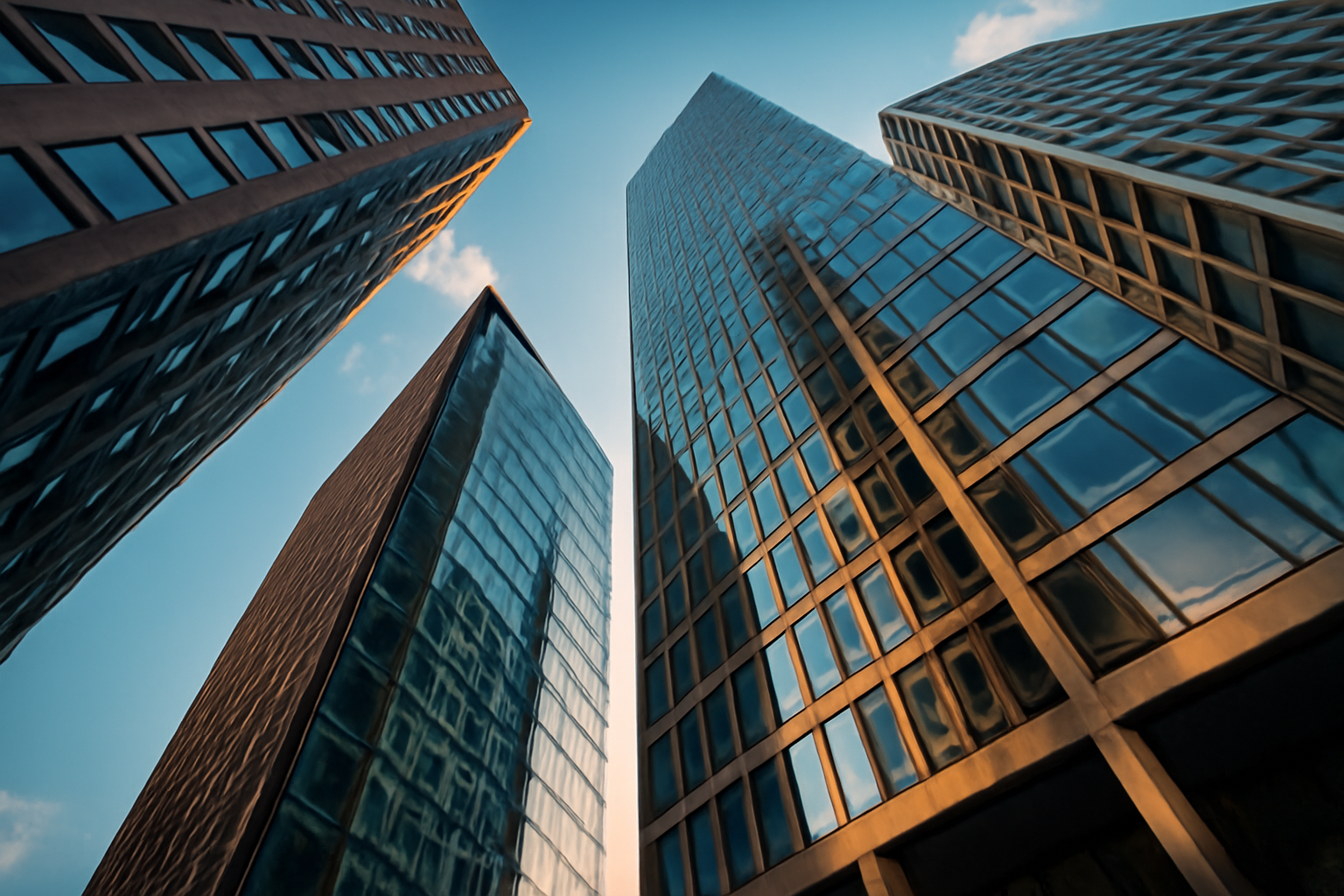
How to Use Photoshop to Improve Your Architecture Photos
Architecture photography has its own technical and creative demands. Capturing the grandeur and details of a structure requires not only good composition but also precise editing to enhance the lines, shapes, and perspectives of the buildings. Photoshop offers powerful tools to improve and perfect your architecture photos, whether it’s correcting distortions, adjusting light, or enhancing the details. In this article, we will explore how to use Photoshop to enhance your architecture photos and create professional and impressive images. 1. Preparing the Image in Photoshop Importing the Image The first step in editing your architecture photos in Photoshop is importing the image. Open the program, click File > Open, and select the architecture photo you want to edit. If possible, create a copy of the image so the original file remains intact during the editing process. Organizing the Layers Working with layers is essential in Photoshop. If you’re making significant changes, such as color adjustments, brightness, and distortions, keep the original layer intact and create a duplicated layer for the edits. This will allow you to easily return to the original image if needed. Tip: Organize your layers clearly and name them to avoid confusion, especially when working with multiple complex edits. 2. Correcting Distortions and Perspective Correcting Perspective with the Transformation Tool In architecture photos, it’s common for vertical and horizontal lines to become distorted due to the shooting angle. The transformation tool in Photoshop lets you correct these distortions by aligning the vertical and horizontal lines so that they appear straight. Step-by-Step: Tip: Using guides can help ensure that the lines are truly straight. To add guides, go to View > Guides. Using the Lens Correction Tool If the distortion in the perspective is more complex, you can use the Lens Correction Tool. Go to Filter > Lens Correction, and in the panel that appears, enable the perspective correction option. This will automatically adjust the perspective of the photo to a more natural and realistic view. Tip: Always check that the perspective of the buildings is correct. Architecture requires precision, and correcting the perspective helps avoid a “tilted” or “skewed” image. 3. Adjusting Exposure and Contrast Adjusting Exposure with Adjustment Layers The exposure control is essential to ensure that the details in the shadows and the lighter areas of the photo are visible. Photoshop offers adjustment layers that allow you to alter the exposure of the image in a controlled manner. Step-by-Step: Tip: When editing architecture photos, be mindful of highlight areas, such as reflections in windows and facades. Use the highlight control to avoid losing details in those areas. Adjusting Contrast with the Curves Tool To increase the depth and sharpness of the lines and shapes in the photo, you can use the Curves Tool. This tool allows for much more precise contrast adjustments than the basic contrast control. Step-by-Step: Tip: Be careful not to overdo the contrast, as it can make the image look artificial. Use subtle adjustments to maintain a natural look. 4. Enhancing Colors and Details Adjusting Color Balance with Hue/Saturation Tool If the color in the image is faded or unbalanced, you can use the Hue/Saturation Tool to adjust the colors in the photo. This is especially useful when you need to enhance the colors of the buildings or correct unwanted colors like green or magenta tones. Step-by-Step: Tip: For architecture photos, try to keep the colors natural and avoid going overboard. Use the luminance tool to adjust the intensity of the color without changing the overall contrast of the image. Using the Adjustment Brush The Adjustment Brush tool allows for localized adjustments to specific areas of the photo. In architecture photos, this can be useful for improving details such as the texture of walls, windows, or architectural features. Step-by-Step: 5. Creating Creative Effects in Architecture Photos Adding Vignette to Focus on the Subject The vignette technique can be used to add a subtle darkening effect to the edges of the photo, helping focus attention on the center of the image. This can be useful to highlight the main architectural feature of the photo, such as the facade of a building or a tower. Step-by-Step: Tip: Use the vignette effect moderately to keep the photo looking natural and not overly stylized. Adding Graphic Elements Adding graphic elements such as lights, reflections, or abstract patterns can help create a more interesting composition. Photoshop offers tools to import and manipulate these elements. Step-by-Step: 6. Finalizing the Edit and Saving the Image Final Adjustments After applying all the effects and adjustments, review the image to ensure that the architectural lines are well-defined and the colors are balanced. Make sure the shadows and highlights are in harmony, and the focus is on the main point of interest. Saving and Exporting the Image When you’re satisfied with the edit, export the image in a suitable format for printing or social media. For print, choose a 300 dpi resolution, and for online use, select a 72 dpi resolution to ensure good web optimization. Tip: For social media, adjust the image size to 1200px wide to ensure the best quality and optimization. Conclusion: Enhancing Your Architecture Photos with Photoshop Photoshop is a powerful tool for improving your architecture photos. By using techniques for perspective correction, exposure adjustments, color enhancement, and adding creative effects, you can transform your photos into impressive images that highlight the beauty of buildings and structures. Learning to use these tools will allow you to create sharper, well-composed, and visually appealing photos.
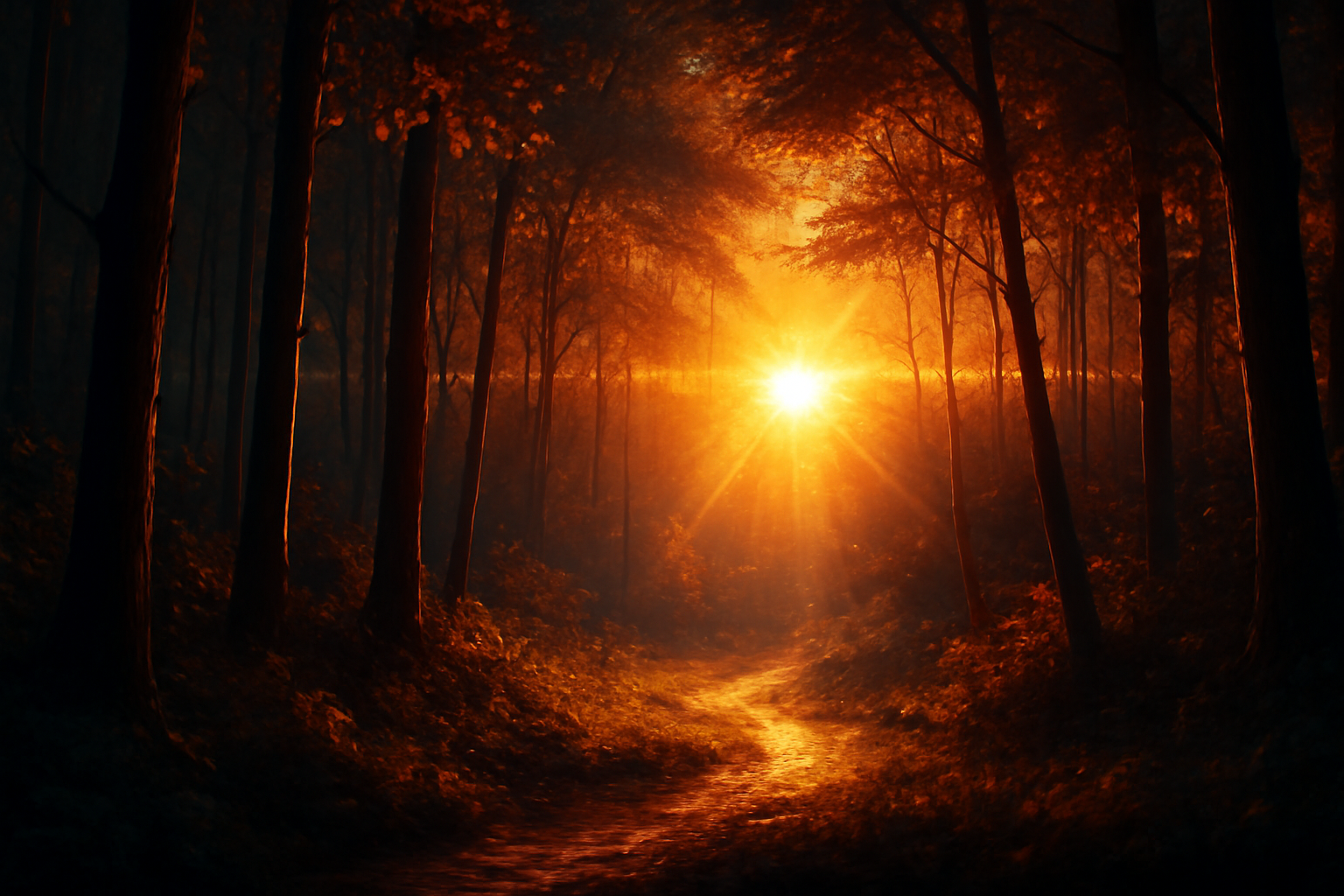
How to Create Special Effects in Photos Using Photoshop
Photoshop is one of the most powerful tools for photographers and graphic designers, allowing you to create impressive special effects in your images. If you want to transform your photos into works of art or add a creative touch to them, learning how to use special effects in Photoshop can make a big difference. In this article, we will explore how to create special effects in your photos, making them even more impactful and original. 1. Preparing the Image in Photoshop Importing the Image to Photoshop Before you start applying any special effects, the first step is to import the image into Photoshop. Open Photoshop and go to File > Open to select the photo you want to edit. If possible, work on a copy of the original image to ensure you always have the original file available. Organizing Layers Photoshop works with layers, and when you create special effects, it’s important to organize them to make editing easier. Duplicate the original image layer to keep the original file intact and make non-destructive changes. Tip: Always rename your layers according to what is being edited to avoid confusion during the process. 2. Creating Color and Light Effects Using Filters for Light Effects One of the most popular special effects in Photoshop is creating glowing lights and blurs. The Lens Blur and Radial Blur filters can be used to give your photo a more dramatic and artistic style. Step-by-Step: Tip: The radial blur can be used to create a movement effect or focus, while the lens blur helps give a sense of depth to the image. Adding Color Effects with Adjustment Layers Another way to create special effects in photos is through the use of adjustment layers to manipulate color. Layers like Hue/Saturation, Curves, or Color Distortion can be used to create vibrant or dramatic effects. Step-by-Step: Tip: To create a retro or vintage effect, adjust the Curves and Hue to add warmer and more saturated tones to the image. 3. Applying Textures and Patterns Using Textures to Create Depth Adding textures to your photo can give it a sense of depth and additional dimension. Photoshop allows you to add textures quickly and easily using layers and blending modes. Step-by-Step: Tip: Experiment with different blending modes to see how the texture interacts with the colors of your photo. Overlay can add a grunge effect, while Multiply can create interesting shadows. Creating Pattern Effects Patterns can also be used to create interesting backgrounds or decorative effects in photos. Photoshop offers several pattern options, or you can create your own custom patterns. Step-by-Step: 4. Creating Creative Blur Effects Using Gaussian Blur The Gaussian Blur is a popular tool for creating soft blur effects in photos, often used to smooth skin in portraits or to create a blurred background. Step-by-Step: Tip: Gaussian Blur can also be used to create a soft-focus effect, where the subject of the photo remains sharp and the background is blurred. Motion Blur Motion Blur is ideal for creating a dynamic effect, especially in photos that capture action. This technique is common in sports photos or high-speed scenes. Step-by-Step: Tip: The motion blur can be used on specific objects or the entire image to create a sense of movement. 5. Adding Creative Elements and Details Adding Lights and Reflections Adding lights and reflections effects can transform an ordinary photo into something spectacular. Using soft light sources or bright reflections can help create a unique atmosphere. Step-by-Step: Tip: For a soft and realistic light effect, use a soft brush and lower the opacity of the layer. Adding Graphic Elements You can also add graphic elements, such as star textures, lightning, or patterns that help compose the scene. Photoshop offers tools to import and manipulate these elements. Step-by-Step: 6. Finalizing the Image and Saving Reviewing the Image After applying all the special effects, review the image to ensure that the adjustments are balanced and that the photo retains a natural look. Make the final adjustments to brightness, contrast, and color to ensure a cohesive image. Saving and Exporting the Image When you’re happy with the result, it’s time to save and export the image. If you plan to use the photo on the web, export it at a 72 dpi resolution. If you plan to print it, choose a 300 dpi resolution to ensure high quality. Tip: For social media, adjust the image size to 1080px wide to optimize loading times. Conclusion: Creating Special Effects with Photoshop Photoshop offers a wide range of tools and techniques to create incredible special effects in your photos. By learning how to use these tools, you can transform an ordinary image into a unique and impactful work of art. Whether you want to enhance details or add a creative touch, Photoshop offers endless possibilities to personalize your photos and make them even more special.
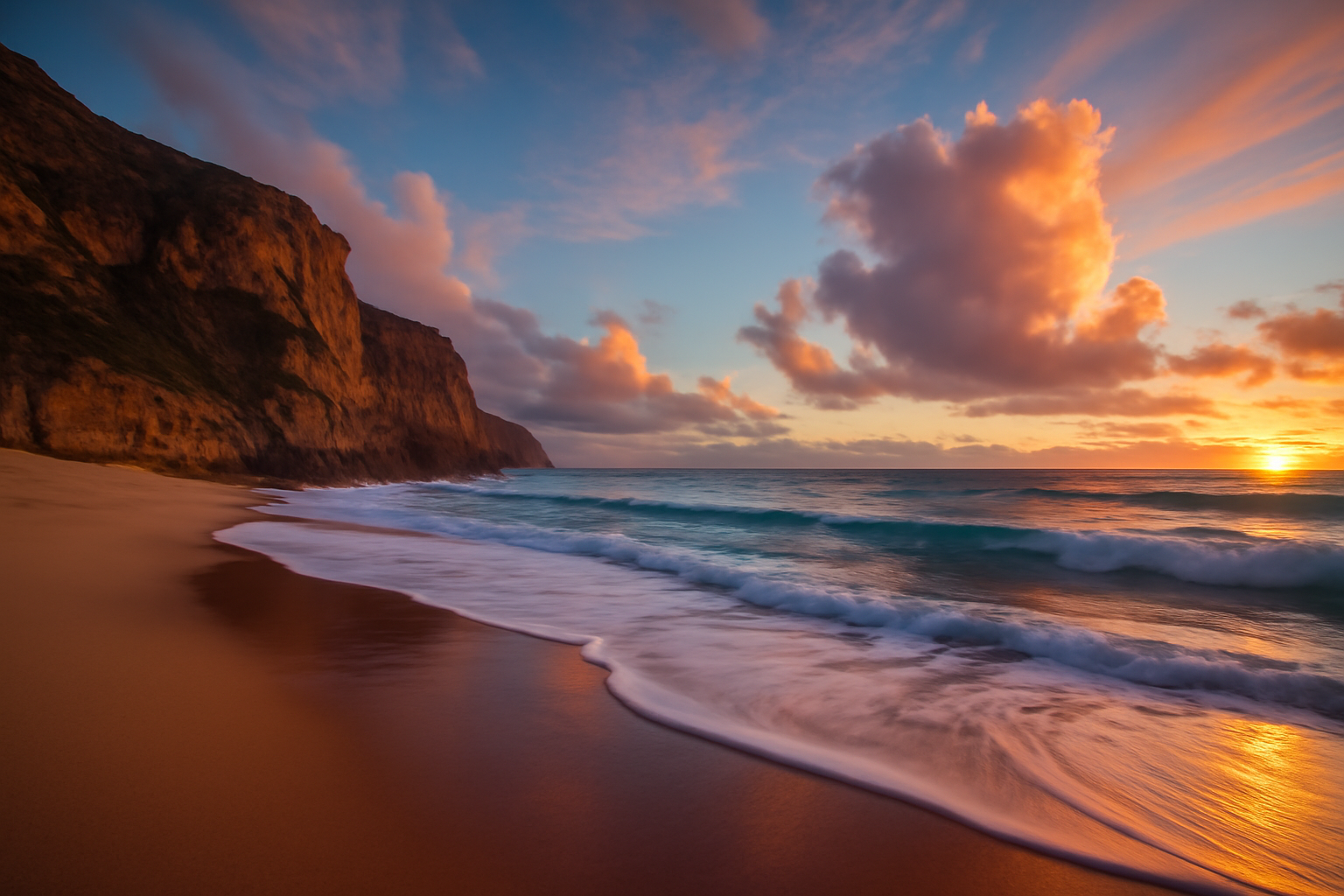
How to Use Lightroom to Improve Your Landscape Photos
Landscape photography is one of the most challenging yet rewarding types of photography. Capturing the vastness of nature and conveying the vibrant colors and details of the scene can be difficult, but with the right editing in Adobe Lightroom, you can enhance the beauty of your landscape photos and create stunning images. In this article, we will explore how to use Lightroom to improve your landscape photos, with practical editing tips and useful tools. 1. Preparing the Image in Lightroom Importing and Organizing Photos The first step in editing a landscape photo in Lightroom is to import the image. Open Lightroom, go to the Library module, and click Import to add your photos. Lightroom offers powerful organizing tools that help you classify your images, add keywords, and make it easier to search for and access the photos later. Adjusting the Initial Exposure Before diving into advanced adjustments, it’s important to make sure the exposure of your photo is balanced. The exposure control in Lightroom lets you adjust the overall brightness of the image, correcting if it’s too dark or too light. If the photo is overexposed, reduce the exposure, and if it’s underexposed, increase it. Tip: When editing landscape photos, exposure is crucial to highlight details in the bright and dark areas of the image. Make sure to preserve the clouds, sky, and shadow details in the scene. 2. Adjusting Color and Tone in Landscape Photography Adjusting White Balance White balance is one of the most important adjustments in landscape photo editing as it controls the dominant colors in the image by adjusting warm and cool tones. In landscape photos, it’s common for the sky to have a cool tone or for a sunset to have a warm tone, and adjusting the white balance can help bring out those colors. Step-by-Step: Tip: Use the eyedropper tool to select an area of the image that should be white or neutral, and Lightroom will automatically adjust the white balance. Adjusting Saturation and Vibrance The saturation and vibrance controls allow you to enhance the intensity of colors in the image. For landscape photos, it’s important to boost skin tones without overdoing it. Vibrance is ideal for increasing the intensity of muted colors without affecting already saturated areas. Tip: Don’t overdo saturation, as it can make the colors look artificial. Using the vibrance control can improve the image in a more subtle and natural way. Working with the HSL/Color Panel The HSL (Hue, Saturation, Luminance) panel allows for precise adjustments to each individual color in the image. For example, you can adjust the red and orange hues to correct redness or unwanted tones in the skin. Tip: To improve skin tone, adjust the luminance of red and orange hues. This will help create smoother and more natural-looking skin. 3. Enhancing the Details of the Landscape: Using Clarity and Texture Using Clarity The Clarity tool in Lightroom increases contrast in the midtones of the image, which can add more definition and depth to your landscape photos. This is especially useful for highlighting textures like rocks, trees, and clouds. Step-by-Step: Tip: For landscape photos, clarity works best in areas like rocks or trees. Avoid using too much clarity in areas like the sky, as it can make the clouds look overly detailed. Using Texture The Texture tool in Lightroom adjusts the fine details of a photo without affecting the smoothness of the image. This is useful for highlighting specific elements like the texture of leaves or the surface of water without overemphasizing the soft areas. Tip: Texture is especially useful in landscape photos with a lot of natural details, like forests or areas with abundant vegetation. 4. Adjusting Shadows and Highlights: Recovering Important Details Recovering Shadows When editing a landscape photo, the darker areas, like tree shadows or mountain ranges, may appear too dark. The shadows slider allows you to lighten these areas without affecting the overall brightness. Step-by-Step: Adjusting Highlights If the sky or other parts of the photo are overexposed, you can use the Highlights slider to reduce the brightness in those areas, preserving details in the sky and other bright parts of the image. Tip: When editing landscape photos, especially those with clear skies or sunsets, adjust the highlights to prevent blown-out areas. 5. Enhancing the Sky and Visual Impact of the Landscape Using the Graduated Filter The Graduated Filter in Lightroom allows you to apply selective adjustments to the top portion of the image, such as the sky, without affecting the rest of the landscape. This is useful for darkening the sky, enhancing color and contrast, or adding a light gradient. Step-by-Step: Tip: The graduated filter can also be used to improve the transition between the sky and land, creating a smoother and more natural feel. Using the Adjustment Brush The Adjustment Brush is a powerful tool for making localized adjustments to the image. You can use it to enhance specific areas, like a mountain, river, or any feature you want to highlight. Tip: Use the brush to increase clarity or enhance saturation in areas of interest, creating more visual impact in the image. 6. Finalizing the Edit and Exporting the Image Final Adjustments After applying all the necessary adjustments, do a final review of the image to ensure all the details are balanced and natural. Check if the sky, land, and other main elements are adjusted correctly. Exporting the Image When you are satisfied with the results, it’s time to export the image in a suitable format for your intended use. For printing, export at high resolution, and for social media, choose a 72 dpi resolution to ensure the photo is optimized for the web. Conclusion: Enhancing Your Landscape Photos with Lightroom Lightroom is an essential tool for improving your landscape photos, offering precise adjustments for color, exposure, and detail. With the right adjustments, you can transform an ordinary photo into an impressive and visually striking image. By mastering Lightroom, you can highlight the true beauty of landscapes and create
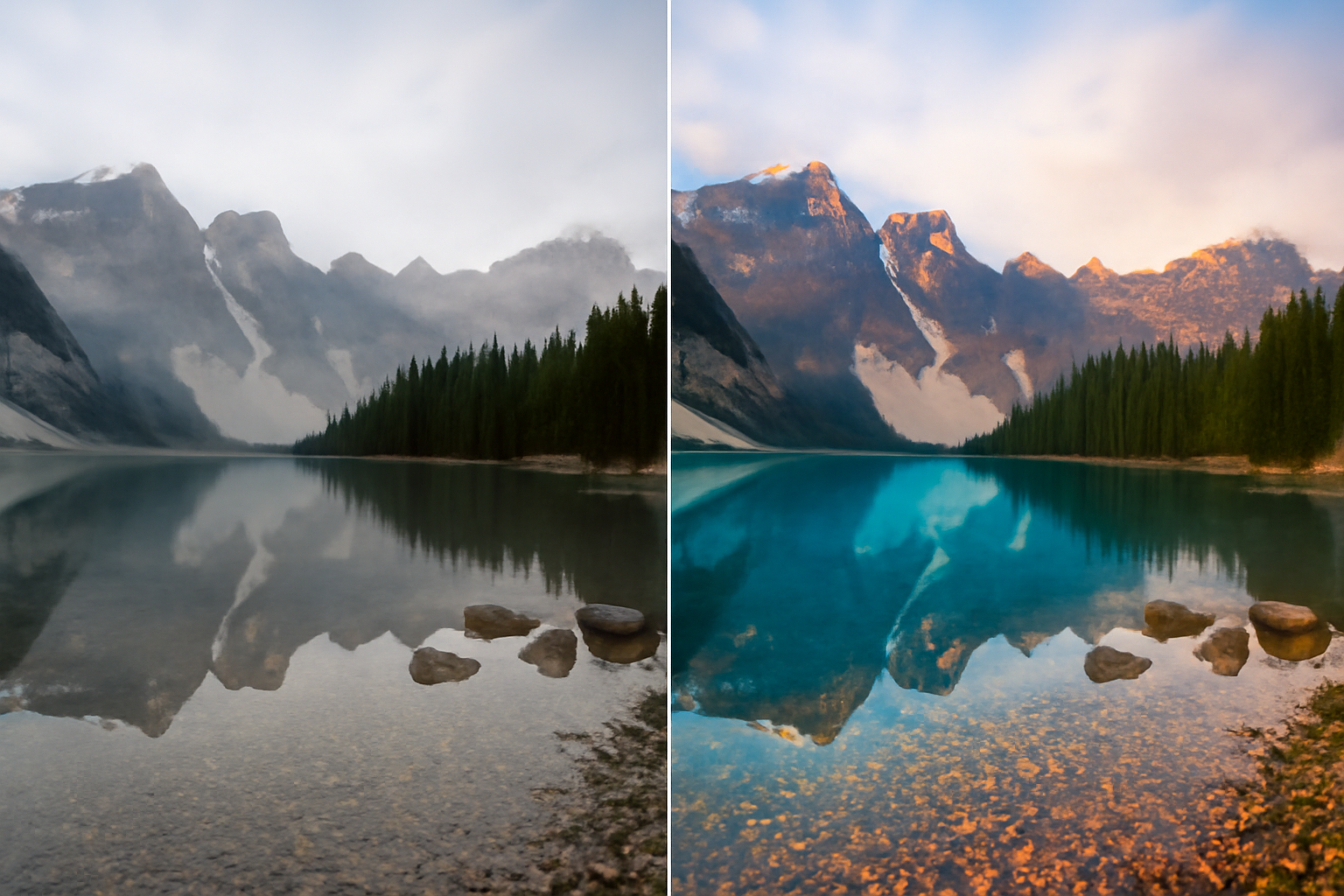
The Art of Portrait Editing: How to Create Stunning Images in Lightroom
Portrait editing is one of the most popular areas in photography, and Adobe Lightroom is a powerful tool for enhancing portraits, highlighting the natural beauty of the subject, correcting imperfections, and creating a unique atmosphere. In this article, we will explore the essential techniques and tips to improve your portraits using Lightroom, creating impressive and professionally finished images. 1. Preparing the Image for Editing in Lightroom Importing and Organizing Photos The first step to editing a portrait in Lightroom is to import the image into the program. Open Lightroom, click on Import in the Library module, and select the photos you want to edit. Lightroom offers effective tools for organizing your images, allowing you to classify and tag them with keywords, making it easier to work when editing many photos. Working with Virtual Copies To work non-destructively, always edit a virtual copy of your image. This keeps the original file intact and allows you to revert any changes when necessary. 2. Adjusting Exposure and Contrast Adjusting Exposure The first adjustment you should make is exposure. The goal here is to ensure the image has the right brightness. In Lightroom’s adjustment panel, the exposure slider controls the overall brightness of the image. Increase or decrease exposure until the image has a balanced brightness, without losing details in the shadows and highlights. Tip: For portraits, avoid overexposing the image to preserve skin texture and details in the eyes. Adjusting Contrast Contrast increases the difference between the light and dark areas of your photo, helping to add depth and definition. Proper contrast makes the skin appear smoother and gives more dimension to the subject’s face. Adjust the contrast slider to increase the separation between the light and dark areas. Tip: Use contrast moderately, especially in portraits. Too high contrast can make the skin look artificial. Adjusting Shadows and Highlights The shadows and highlights sliders are essential for fine-tuning exposure. You can lighten dark areas (shadows) without affecting the overall brightness or darken bright areas that are too exposed. Tip: Pay attention to detailed areas like the eyes and hair to avoid losing definition when adjusting shadows and highlights. 3. Enhancing Colors in Lightroom Adjusting Skin Tone Skin tone is one of the most important aspects when editing portraits. Lightroom offers tools to adjust white balance and color temperature, allowing you to adjust the skin tone, creating a more natural and healthy appearance. Step-by-Step: Tip: Avoid applying an overly warm or cool skin tone, as this can make the photo look unrealistic. Aim for a soft and natural tone. Adjusting Saturation and Vibrance The saturation and vibrance controls allow you to enhance the intensity of colors in the image. For portraits, it is important to enhance the skin tones without overdoing it. Vibrance is ideal for boosting the intensity of muted colors without affecting already saturated areas. Tip: If the skin color looks too dull or lifeless, increase the vibrance a little, without overdoing the saturation. Working with the HSL/Color Panel The HSL (Hue, Saturation, Luminance) panel allows for precise adjustments to each individual color in the image. For example, you can adjust the red and orange hues to correct redness or unwanted tones in the skin. Tip: To improve skin tone, adjust the luminance of red and orange hues. This will help create smoother and more natural-looking skin. 4. Using the Adjustment Brush for Specific Corrections Localized Adjustments with the Brush The Adjustment Brush in Lightroom allows you to make corrections to specific areas of the photo. This is ideal for brightening the eyes, smoothing the skin, or enhancing hair details without affecting the rest of the image. Step-by-Step: Tip: Use the brush to brighten shaded areas on the face, such as under the eyes, or to enhance the eyes and make them more vibrant. Adjusting Sharpness and Clarity The sharpness adjustment helps to increase the definition of the eyes and other important details on the face. Clarity is also useful for enhancing details, especially in skin and hair textures. Tip: Avoid overdoing the clarity adjustments, as it may make the skin look rough. Apply it moderately for a natural effect. 5. Creating the Portrait Environment and Style Vignette Effects Adding a subtle vignette to the edges of the photo can help highlight the subject’s face, creating a natural focus in the center. In Lightroom, you can apply a soft vignette, darkening the edges and lightening the center of the image. Tip: Use the vignette sparingly so the effect isn’t too obvious. A light vignette can add depth and focus to the portrait. Using Background Blur If you want to highlight the face even more, you can simulate a background blur. Although Lightroom doesn’t have a detailed background blur tool like Photoshop, you can use the Adjustment Brush to soften areas around the subject, giving the impression of a more blurred background. Tip: Apply a gentle blur around the face, but make sure the effect is gradual and natural. 6. Finalizing the Edit and Exporting the Image Final Adjustments After applying all the necessary adjustments, review the image to ensure that the subject’s appearance is natural and balanced. Make sure the skin has a smooth tone without being over-edited. Exporting the Image Once you are happy with the results, it’s time to export the image. Choose the right resolution and adjust the quality to ensure that the photo is optimized for print or social media. Tip: For social media, export your images at a 72 dpi resolution with good compression quality to avoid making the file too large. Conclusion: Enhancing Portraits with Lightroom Lightroom offers powerful and easy-to-use tools to create stunning portraits. The key is to carefully adjust exposure, colors, and details to achieve a natural and professional result. Portrait editing in Lightroom can transform your photos, bringing out the true beauty of the subject without losing the natural look.
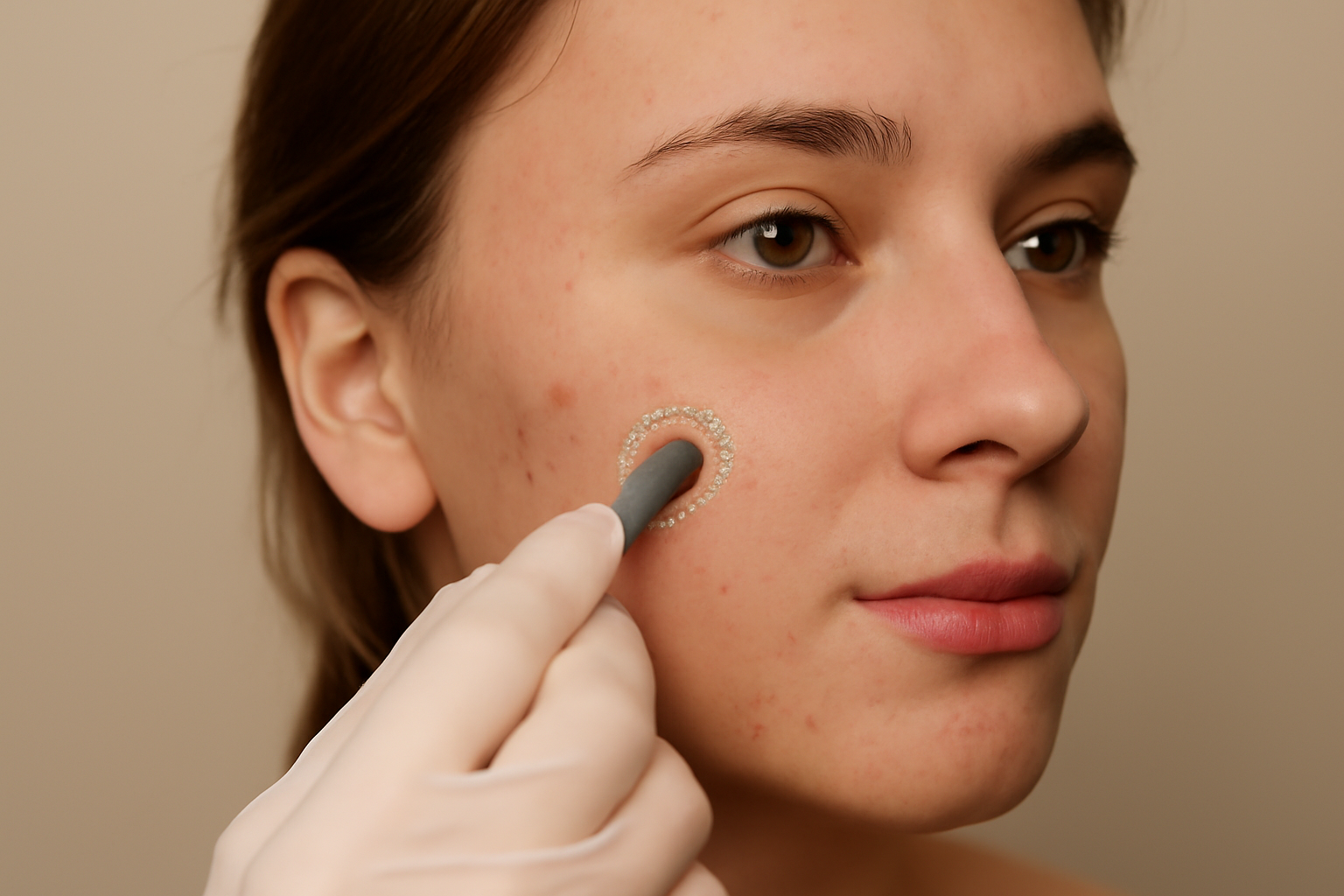
How to Fix Skin Imperfections Using Photoshop: Step-by-Step Guide
One of the essential skills for any photographer editing portraits is the ability to correct skin imperfections in a natural and realistic manner. In Adobe Photoshop, there are several powerful tools that allow you to smooth, retouch, and correct the skin without losing the essential texture details. In this article, we will show you how to use these tools to enhance the appearance of the skin while maintaining a natural and professional result. 1. Preparing the Image for Editing Importing the Image Before starting the editing process, the first step is to import the image into Photoshop. Open the program, go to File > Open, and select the image you want to edit. It’s always good to work on a copy of the original image to avoid irreversible changes. Organizing Layers When editing the skin, it’s recommended to duplicate the original layer to maintain control over the adjustments made. To duplicate the layer, select it in the layer palette, right-click, and choose Duplicate Layer. This allows you to work non-destructively and revert to the original if necessary. 2. Removing Imperfections: Basic Correction Tools Using the Healing Brush Tool The Healing Brush Tool (Spot Healing Brush Tool) is one of the most effective tools for removing small skin imperfections, such as pimples, blemishes, and marks. It automatically blends the surrounding area to fill imperfections in a natural way. Step-by-Step: Tip: Use the brush with a low hardness to avoid harsh edges in the corrected areas. Using the Clone Stamp Tool The Clone Stamp Tool allows for more precise corrections by cloning a healthy area of skin and applying it to an imperfection. Step-by-Step: Tip: Use the opacity mode to adjust the intensity of the correction and make the transition smoother. 3. Smoothing the Skin: Advanced Techniques for a Natural Finish After removing imperfections, the next step is to smooth the skin’s texture. This can be done in various ways, but it’s essential to maintain the natural texture to avoid an artificial result. Using the Gaussian Blur Filter The Gaussian Blur filter is an excellent tool for smoothing skin, but it’s important to use it sparingly so that the effect doesn’t erase the essential skin texture. Step-by-Step: Using the High-Frequency Filter The High Frequency filter is an advanced technique that allows you to smooth the skin while preserving the original texture. It separates the image into two layers: a low-frequency layer (for smoothing color and tones) and a high-frequency layer (for maintaining texture details). Step-by-Step: Tip: When using the high-frequency technique, keep the blur intensity minimal to ensure the skin texture is preserved. 4. Final Adjustments: Enhancing the Skin’s Appearance Adjusting Skin Tone Sometimes, after editing, the skin tone may appear slightly off. To fix this, you can adjust the color and tone balance using the hue and saturation tools. Step-by-Step: Using the Tone Levels Mask You can add a levels adjustment layer to lighten or darken specific areas of the skin, further enhancing the appearance of the texture. Step-by-Step: 5. Finalizing: Tips for a Natural Result Avoid Overdoing It Although Photoshop offers a wide variety of powerful tools for editing, the key to well-done skin editing is to avoid overdoing it. Keep the skin texture intact and aim to highlight the subject’s natural features. Using Zoom for Detail When editing, use 100% zoom to view and adjust small imperfections with precision. This helps ensure the edit is natural and flawless. Check the Final Result After finishing, review the image at both actual size and in a reduced size to ensure that the smoothing effect looks natural and balanced. Conclusion: How to Keep Skin Edits Natural Editing skin imperfections using Photoshop can be an easy task when you have the right tools and techniques. The key is to avoid over-editing and always maintain the skin’s natural texture. With patience and practice, you’ll learn how to make subtle corrections that enhance the image without losing the important details that make each photo unique.
Photoshop vs. Lightroom: Which Photo Editing Tool is Better for You?
Choosing the right photo editing tool is essential for photographers, whether you’re a beginner or a seasoned pro. Two of the most popular options available are Adobe Photoshop and Adobe Lightroom. Each tool has its strengths, and knowing which one to choose can make a significant difference in your workflow. In this article, we’ll explore the features, pros, and cons of both tools to help you decide which one is the best fit for your photography needs. 1. What is Adobe Photoshop? An Overview of Photoshop Adobe Photoshop is a pixel-based image editing software that offers an incredibly detailed and versatile set of tools for photo manipulation and graphic design. It’s widely regarded as the industry standard for image editing, used by professionals across various fields, from photographers to designers. Key Features of Photoshop Some of the key features of Photoshop include: 2. What is Adobe Lightroom? An Overview of Lightroom Adobe Lightroom is primarily focused on non-destructive editing, allowing photographers to make adjustments to their photos without permanently altering the original image. Lightroom is perfect for photographers who need to manage large quantities of photos and make global adjustments quickly. Key Features of Lightroom Some key features of Lightroom include: 3. Photoshop vs. Lightroom: Key Differences 1. Editing Workflow One of the major differences between Photoshop and Lightroom is their approach to editing: When to Choose Photoshop for Editing When to Choose Lightroom for Editing 2. Speed and Efficiency 3. File Management 4. Price and Value 4. Which Tool is Best for You? Choosing Based on Your Needs When Photoshop is Best When Lightroom is Best 5. Conclusion: Photoshop or Lightroom? Both Photoshop and Lightroom have unique features that serve different needs in the world of photography. Photoshop excels at detailed photo manipulation and creative control, while Lightroom shines with its ease of use, speed, and batch editing features. Ultimately, the best tool depends on your photography style and needs. If you are working on large collections of photos and want an efficient editing workflow, Lightroom is the ideal choice. If your work requires heavy manipulation and pixel-perfect edits, Photoshop is the way to go.
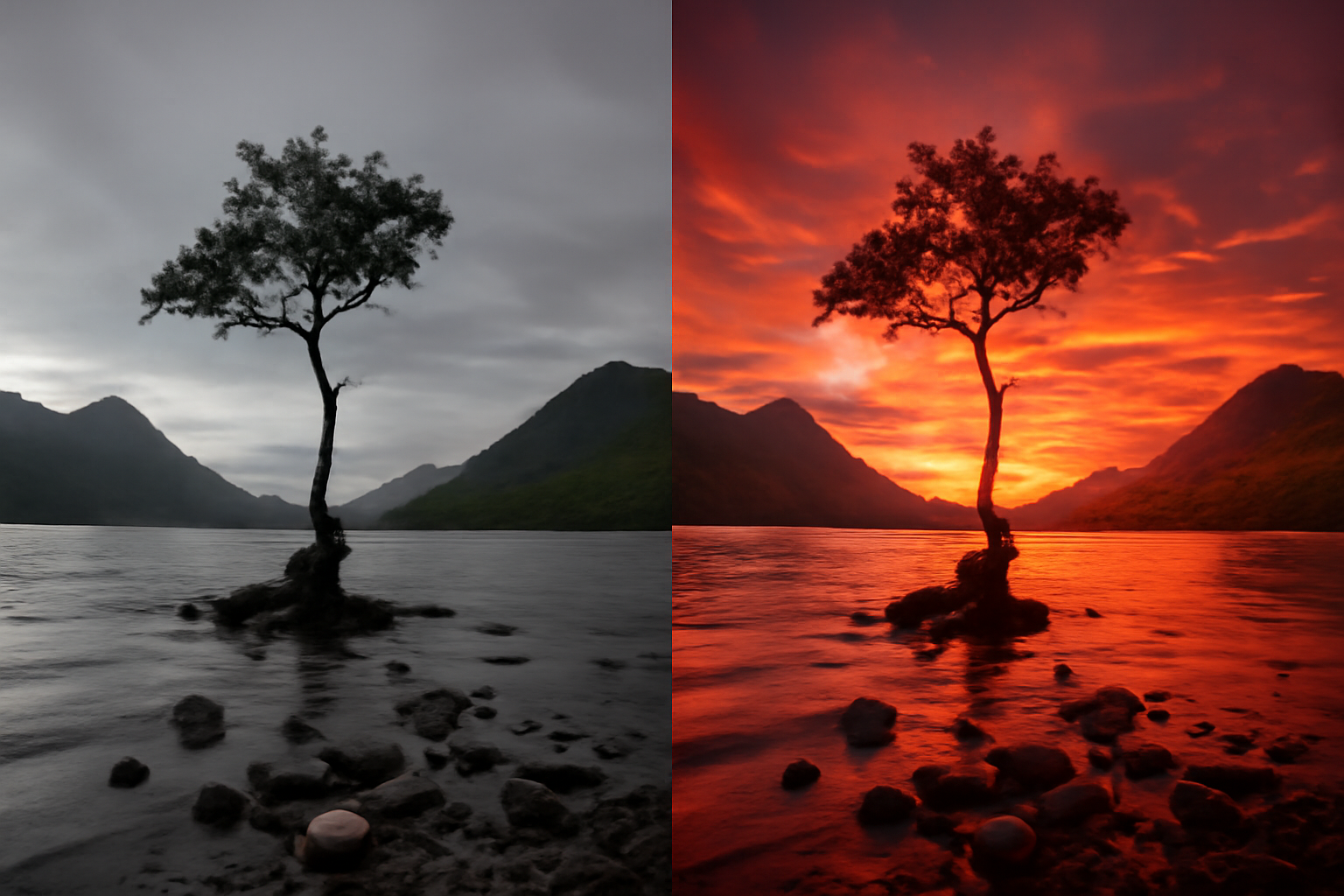
How to Use Lightroom to Improve Your Photos: Essential Tips for Beginners
Adobe Lightroom is one of the most powerful and popular photo editing tools, widely used by both amateur and professional photographers worldwide. Its intuitive interface and powerful editing tools allow you to adjust everything from simple photo tweaks to complex transformations, all in a non-destructive way. In this article, we’ll explore how to use Lightroom efficiently to improve your photos. What is Adobe Lightroom and How Does It Work? The Role of Lightroom in Photo Editing Lightroom is not just a photo editor but also a powerful photo management tool. Unlike Photoshop, which works with pixel-level edits, Lightroom is optimized for quick global adjustments. It allows you to tweak exposure, colors, contrast, sharpness, and more without altering the original quality of the image. Organization and Workflow Before editing your photos, you need to import them into Lightroom. The program offers a library where you can organize, tag, and rate your photos. This is especially useful for photographers who work with large volumes of images, such as those shooting weddings or photo sessions. Lightroom allows you to manage everything in one place. Basic Adjustments in Lightroom: First Steps 1. Adjusting Exposure Exposure is the first adjustment you should make. When a photo is too dark (underexposed) or too bright (overexposed), the image quality can be compromised. In Lightroom, the exposure slider is simple to use—just move it until the image is balanced. Tip: While adjusting exposure, pay attention to the highlight and shadow areas to avoid losing important details. 2. Contrast: Enhancing Details Contrast is the difference between the light and dark areas of your photo. Proper contrast can add depth to an image. The contrast slider in Lightroom allows you to increase or decrease the difference between these areas. Tip: If you want more contrast, move the slider to the right, but if the image becomes too harsh, tone it down a bit to soften the effect. 3. Adjusting Highlights and Shadows Lightroom offers highlight and shadow sliders for fine-tuning your exposure. You can lighten dark areas (shadows) without affecting the overall brightness of the image or, if necessary, darken bright areas. Tip: Use the shadow control to recover details in dark areas and the highlight control to avoid bright areas from being blown out. Improving Colors in Lightroom 1. White Balance Adjustment The white balance adjusts the overall color tone of the image, giving it a warmer or cooler feel. The temperature slider in Lightroom can be adjusted easily by moving the slider left (cooler) or right (warmer). Tip: For a cozy, warm look, move the temperature to the warmer side. For cooler, calmer tones, move it towards the cooler side. 2. Saturation and Vibrance Saturation controls the intensity of all colors in the image, while vibrance adjusts the more muted colors without affecting the already saturated ones. These two controls allow you to make precise adjustments. Tip: Increase the vibrance for a livelier look without overdoing it, while saturation can be used to intensify or soften colors entirely. 3. HSL/Color: Advanced Color Control The HSL/Color panel in Lightroom allows for detailed control over the hue, saturation, and luminance of each individual color. This is useful for more specific adjustments, such as intensifying the green of plants or softening the blue of the sky. Tip: Experiment with reducing the saturation of reds or oranges in portraits for more natural-looking skin tones. Using Lightroom’s Image Correction Tools 1. Lens Correction Lightroom has a lens correction tool that automatically adjusts distortions caused by the lens used, such as vignetting (darkening of the edges) and barrel distortion. Tip: Whenever possible, enable the automatic lens correction, especially when shooting with wide-angle lenses. 2. Removing Imperfections While Lightroom isn’t as powerful as Photoshop for detailed retouching, it does have a spot removal tool that is useful for fixing small imperfections, like dust on your lens or blemishes on the skin. Tip: Use the adjustment brush tool to remove small blemishes or enhance specific areas of the photo. 3. Adding a Vignette A subtle vignette can help highlight the main subject of the photo by darkening the edges, drawing attention to the center. Use this tool in moderation to avoid overdoing the effect. Tip: Adjust the vignette style to not affect the overall balance of the image, focusing on the main subject. Exporting Your Photos in Lightroom 1. Export Settings Once your editing is complete, you can export your photos from Lightroom to various platforms. Export settings include choosing the file format (JPEG, TIFF, PNG), resolution, and quality. Tip: For social media, use a resolution of 72 dpi and adjust the quality to a level that maintains a good balance between quality and file size. 2. Export Presets If you frequently make similar edits, Lightroom allows you to save export presets. This saves time, as you can apply your favorite export settings automatically. Conclusion: The Magic of Lightroom in Photo Editing Lightroom offers a series of powerful and intuitive tools for photographers of all levels. From simple adjustments like exposure and contrast to more advanced edits like color grading and lens correction, Lightroom is essential for photographers who want to improve their images quickly and effectively. As you continue to explore all of Lightroom’s features, you’ll begin to develop your own editing style and transform your photos from good to extraordinary. Don’t be afraid to experiment, and remember that practice is key to mastering photo editing.

Apps to Create Photography Portfolios on Your Phone
Having a well-organized portfolio is essential for any photographer — whether amateur or professional. A portfolio not only showcases your work with quality but also helps you attract clients, build credibility, and keep your best images in one place. The good news is that today, you can create impressive portfolios directly from your phone, using apps that offer modern design, easy organization, and even online sharing options. In this article, you’ll discover the best apps to create photography portfolios on your smartphone and learn how to use them strategically. 1. Why have a photography portfolio? A portfolio is more than just a gallery of photos — it’s your professional showcase. With it, you can: And the best part: with the right apps, you can create everything without a computer. 2. Best Apps to Create Portfolios on Your Phone 📱 1. Adobe Portfolio 📌 Requires a paid Adobe plan. 📱 2. Canva Perfect for full visual control without complications. 📱 3. Pixieset 📌 Free version available with storage limits; paid plans also offered. 📱 4. Behance Great for photographers who want to showcase their work globally. 📱 5. Google Sites Lightweight, easy-to-use option for anyone who wants something straightforward. 3. What to Include in Your Portfolio Regardless of which app you choose, be sure to organize your content effectively: ✅ Choose your best photos Quality over quantity. Show variety, but keep a consistent style. ✅ Categorize your work Portraits, events, landscapes, products — organize clearly. ✅ Add photo details Date, location, project type, camera used, creative concept — these add context and value. ✅ Include your contact info Links to WhatsApp, social media, or email are essential. ✅ Keep it updated Always refresh your portfolio with new, relevant work. 4. Extra Tips to Impress Conclusion: Your Portfolio in the Palm of Your Hand With the right apps, you can build a photography portfolio that’s modern, elegant, and functional — without a computer or technical skills. Whether you want to impress clients, showcase your talent, or simply organize your work with care, apps like Canva, Pixieset, Behance, and Adobe Portfolio make the process easier and highlight your value as a photographer. The world will judge your photos by how they’re presented.Take care of the window that shows who you are as an artist.
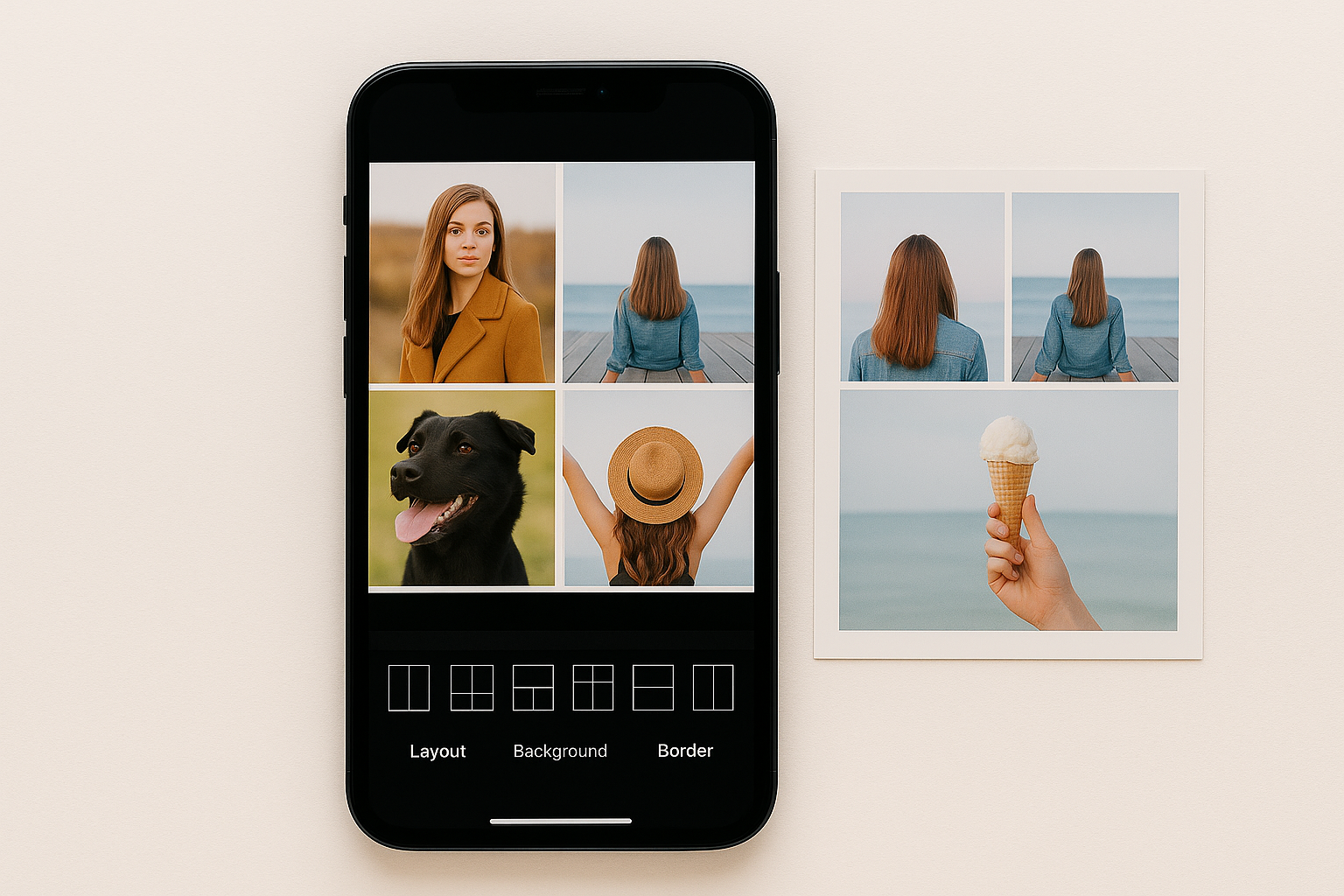
Apps to Make Collages with Your Photos
Photo collages are a creative, fun, and visually appealing way to tell stories, highlight special moments, or create content for social media, albums, invitations, and more. The best part? You don’t need any graphic design skills or complex software to make a great-looking collage. With the right apps, you can do everything directly from your smartphone in just a few taps. In this article, you’ll discover the best apps to make photo collages, learn about their key features, and get tips to create eye-catching layouts easily. 1. Why use photo collages? Collages are great for: And best of all: you can do it all in style and high quality, even without design experience. 2. Best Apps to Make Photo Collages 📱 1. Canva One of the most complete apps for collages and graphic design in general. Ideal for anyone looking for convenience, customization, and a professional look. 📱 2. PicsArt A popular app for its variety of creative tools. Great for users who love creativity and unique layouts. 📱 3. PhotoGrid As the name suggests, it specializes in grid-based collages. Perfect for quick and visually engaging collages. 📱 4. Layout from Instagram Instagram’s official app for making simple collages. Ideal for creating collages for Stories or feed posts. 📱 5. Fotor A photo editing app that also offers a great collage maker. Great for users seeking elegant and minimalistic collage designs. 3. Tips to Make Creative Photo Collages ✅ Choose photos that go together Use images with similar tones, themes, or from the same event to keep visual harmony. ✅ Keep visual balance Avoid overcrowding the layout. Less is more. ✅ Try different layouts Don’t stick only to grid formats — explore freestyle and unique compositions. ✅ Add meaningful text Short phrases, dates, or titles help add context and meaning. ✅ Use frames and backgrounds carefully They can enhance your collage, but shouldn’t overpower the photos. 4. When to Use Photo Collages Collages are perfect for: Conclusion: Tell Visual Stories with Creativity Creating photo collages is an accessible, practical, and powerful way to communicate memories, ideas, and emotions through images. With apps like Canva, PicsArt, PhotoGrid, and others, you can turn ordinary photos into beautiful, eye-catching compositions — no design skills needed. Experiment with different styles, explore your creativity, and share your collages with the world — all from your phone.