You don’t need a professional camera or a powerful computer to turn an ordinary photo into a clean, sharp image with that “social-ready” look. Today, your phone already has excellent editing tools—and with a simple method, any beginner can improve fast without going overboard (like too much saturation or skin that looks unreal).
In this guide, you’ll learn how to edit photos on your phone using a clear, repeatable workflow that’s easy to memorize. The goal is that, by the end, you can look at an image and know exactly what to adjust, in what order, and why.
What you need before you start
To learn how to edit photos on your phone with consistency, the most important thing isn’t the “trendiest app,” but a process. Still, a few basics help:
1) A reliable editing app
You can use:
- Your phone’s built-in editor (iPhone/Android)
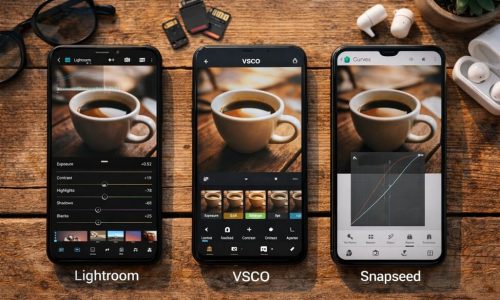
- Popular editing apps that include light, color, sharpness, curves, crop tools, and selective adjustments
The key is to pick one and practice. Switching apps every week slows your progress in how to edit photos on your phone.
2) A “clean” editing environment
- Set screen brightness to a medium level (so you don’t edit too dark or too bright)
- Turn off Night Shift / blue light filters while editing (they change color perception)
- If possible, clean your screen (yes, it makes a difference)
3) A clear intention for the photo
Ask yourself: Is this for a feed post? A Story? A portfolio? A product shot? Lifestyle content?
Your answer influences the style of how to edit photos on your phone: more natural, more vibrant, moodier, cinematic, and so on.
Common beginner mistakes when editing on a phone
Before the step-by-step, it helps to avoid a few traps that make an edit look “amateur” even if the adjustments are decent:
Overdoing saturation
Colors that are too intense look artificial and often “break” skin tones. In how to edit photos on your phone, less is usually more.
Brightening too much and losing depth
When exposure is pushed too far, the photo loses contrast and dimension. The result looks flat and washed out.
Too much sharpening
Excess sharpness creates harsh edges and reveals noise. The photo can end up looking crunchy or gritty.
Using filters without fine-tuning
Filters can help, but they rarely work perfectly on their own. Strong results in how to edit photos on your phone come from a filter plus thoughtful adjustments.
How to edit photos on your phone step by step (complete workflow)
Here’s a method you can use on any photo. This order reduces rework and improves results.
Step 1) Choose the best photo (before you edit)
In how to edit photos on your phone, editing won’t rescue a photo that’s truly poor—it enhances a good starting point.
Quick checklist:
- Is the subject in focus?
- Is the image shaky or blurred?
- Is the light acceptable (even if not perfect)?
- Does the composition already feel good?
If you took several shots, pick 2–3 and edit the best one. This speeds up your learning in how to edit photos on your phone.
Step 2) Crop and straighten (composition first)
This is one of the most underestimated steps. A good crop can make a photo look “professional” before you touch color.
What to do:
- Straighten the horizon (especially in landscapes and architecture)
- Remove distractions at the edges
- Adjust the aspect ratio (1:1, 4:5, 9:16, etc.)
Practical tip
Use the rule of thirds
Turn on the grid and place your subject near a third line instead of always centered. This helps a lot when learning how to edit photos on your phone for social content.
Step 3) Adjust the light (the heart of editing)
If one area transforms everything in how to edit photos on your phone, it’s light. Use this sequence:
3.1 Exposure (overall brightness)
Adjust until the photo feels natural. Avoid blowing out bright areas.
3.2 Contrast
Contrast adds depth. Increase a little if the photo feels dull, but don’t make it harsh.
3.3 Highlights
Lower highlights to recover detail in skies, windows, lamps, and bright reflections.
3.4 Shadows
Lift shadows to reveal detail in dark areas, without making the image look “flat.”
3.5 Whites and Blacks
- Whites control the brightest tones.
- Blacks control the deepest shadows.
This “micro-control” is a big differentiator in how to edit photos on your phone.
Step 4) Correct color (without making it fake)
Great color isn’t the strongest color. It’s color that matches the scene’s light.
4.1 Temperature (warm/cool)
- If the photo is too yellow, cool it slightly.
- If it looks too blue and cold, warm it up.
4.2 Tint (green/magenta)
Tint fixes weird color casts, especially under indoor lighting.
4.3 Vibrance vs. Saturation
- Vibrance boosts color more intelligently (better for beginners)
- Saturation boosts everything (use carefully)
A solid rule in how to edit photos on your phone: adjust vibrance first; use saturation only in small amounts.
Step 5) Details: sharpening, texture, and noise reduction
This is where you refine the image, but lightly.
5.1 Sharpening
Use a small amount. Zoom in to check edges, then zoom out to judge the overall look.
5.2 Texture/Clarity
- Texture enhances fine detail (fabric, hair, wood).
- Clarity increases local contrast (it can make skin look harsh if overused).
For lifestyle visuals, how to edit photos on your phone often looks best with low to moderate texture and gentle clarity.
5.3 Noise reduction
Useful for low-light photos. Don’t remove all noise, or the image can look waxy and “plastic.”
Step 6) Selective adjustments (the touch that changes everything)
If your editor offers a brush, selective tool, or masks, use it to:
- Brighten the face slightly in a portrait
- Reduce highlights on a blown-out window
- Add focus to the subject and darken the background subtly
Small, targeted edits are where how to edit photos on your phone starts to look polished and intentional.
Step 7) Tone curve (optional, but powerful)
Curves give you fine control over contrast and style. For beginners:
A gentle S-curve
How to do it
- Lift highlights slightly
- Lower shadows slightly
This adds depth and a premium feel. In how to edit photos on your phone, subtle curves usually beat aggressive moves.
Step 8) Vignette and grain (with purpose)
- Vignette can guide the eye toward the subject, but heavy vignette looks obvious.
- Grain can add a film-like texture, useful for certain lifestyle aesthetics.
Use these as seasoning. Good how to edit photos on your phone doesn’t scream “edited”—it makes the photo feel stronger.
Step 9) Final check (the reality test)
Before saving:
- View the photo full-screen
- Lower your screen brightness for a moment, then restore it (it resets your perception)
- Compare with the original (don’t get attached; the goal is improvement, not total transformation)
This step prevents the most common over-editing issues in how to edit photos on your phone.
Two repeatable looks (without relying on filters)
Below are two simple “maps” you can reuse. They work across many situations and help beginners build consistency in how to edit photos on your phone.
Look 1: Natural and bright (light lifestyle)
Best for: daytime, cafés, daily routines, portraits, bright interiors.
General direction:
- Exposure: slight increase
- Highlights: slightly lower
- Shadows: slightly higher
- Temperature: neutral to a touch warm
- Vibrance: moderate
- Sharpening: low to medium
This keeps things realistic—an advantage when your goal is how to edit photos on your phone for blogs and social platforms.
Look 2: Soft contrast with a subtle “cinematic” mood
Best for: street scenes, nighttime, urban environments, moody light.
General direction:
- Exposure: minimal changes
- Contrast: moderate
- Blacks: slightly deeper
- Saturation: lower
- Curve: gentle S
- Grain: subtle
This feels more authored without becoming a heavy filter. Great for expanding your how to edit photos on your phone style while keeping a clear identity.
How to keep your feed consistent (and look “pro” faster)
If you want your images to feel cohesive, you need consistency. In how to edit photos on your phone, that comes from three choices:
1) Choose a color direction
Do you lean warm, cool, or neutral?
You don’t need to be rigid—just coherent.
2) Build a “mental preset”
Even without presets, you can repeat:
- The same light approach
- Similar color intensity
- Similar sharpness level
3) Save visual references
Keep 3 edited photos you love (your own edits). Compare new edits to them. This accelerates how to edit photos on your phone because it trains your eye.
Quick steps for specific photo types
How to edit food photos on your phone
- Lower highlights (plates and sauces reflect light easily)
- Increase texture slightly (details look appetizing)
- Adjust temperature to avoid excessive yellow
- Be careful with saturation (food can look unnatural fast)
How to edit selfies and portraits on your phone
- Exposure with moderation
- Lift shadows to recover detail
- Keep sharpening low (especially on skin)
- Avoid heavy smoothing (natural texture wins)
How to edit night photos on your phone
- Exposure: increase a little, not a lot
- Use noise reduction carefully
- Lower highlights to control bright lights
- Keep contrast moderate to preserve mood
Final checklist so you stop guessing
Before posting, confirm:
- Crop is straight and clean (no edge distractions)
- Light is balanced (no blown highlights)
- Color looks natural (or stylized with clear intent)
- Sharpness is subtle
- Selective edits are gentle
- The result fits your overall style
This checklist becomes a shortcut for how to edit photos on your phone confidently, even as a beginner.
A simple way to improve in 7 days
If you want to leave “I moved random sliders and don’t know what I did” behind and enter “I control my edits,” follow this for one week:
Day 1–2: Crop + light only
Train your eye for exposure, shadows, and highlights.
Day 3–4: Light + color
Learn temperature, vibrance, and saturation control.
Day 5: Details
Sharpening, texture, and noise reduction—with a light hand.
Day 6: Selective edits
Guide attention without making it obvious.
Day 7: Full workflow repetition
Edit 10 photos using the same order every time.
This short practice creates a big leap in how to edit photos on your phone because it builds process memory and visual consistency.
What changes when you truly master this
When you learn how to edit photos on your phone with a reliable step-by-step system, something interesting happens: you start taking better photos automatically. You notice light before you tap the shutter, compose with more intention, avoid cluttered backgrounds, and choose angles that flatter what matters. Editing stops being “rescue work” and becomes your signature.
Here’s a simple challenge: pick three photos from your camera roll right now and apply this workflow exactly in order (crop → light → color → details → selective → final check). Watch how your eye shifts in minutes. If you repeat this through the week, how to edit photos on your phone stops being a question and becomes a skill—one that elevates your visual style, your digital presence, and even the way you see everyday moments.